> ## Documentation Index
> Fetch the complete documentation index at: https://inference-docs.cerebras.ai/llms.txt
> Use this file to discover all available pages before exploring further.
# Get Started with OpenCode
> Configure OpenCode to use Cerebras Inference for AI coding assistance.
[OpenCode](https://opencode.ai/?utm_source=cerebras\&utm_campaign=opencode) is a 100% open-source, terminal-focused AI coding assistant that runs multiple models and integrates deeply with developer tools for coding automation.
## Prerequisites
Before you begin, ensure you have a **Cerebras API Key**. Get an API key from the [Cerebras Cloud console](https://cloud.cerebras.ai/?utm_source=3pi_opencode\&utm_campaign=integrations).
## Configure OpenCode
Run the following:
```bash theme={null}
curl -fsSL https://opencode.ai/install | bash
```
After installation, reload your shell configuration so the `opencode` command is available in your current session:
```bash theme={null}
source ~/.zshrc
```
If you use bash, run `source ~/.bashrc` instead.
Run the following command, then select Cerebras from the dropdown menu:
```bash theme={null}
opencode auth login
```
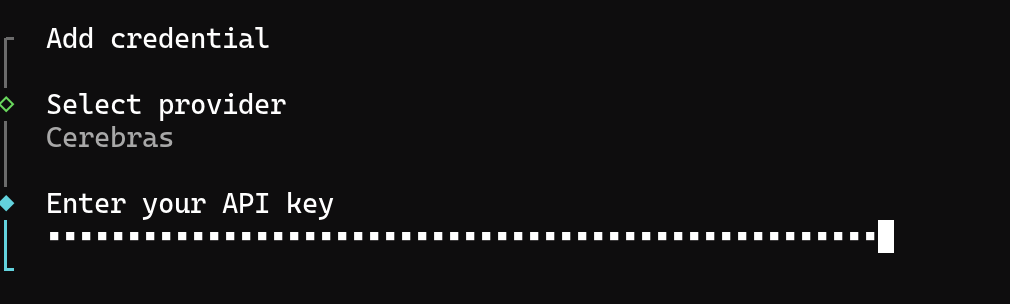
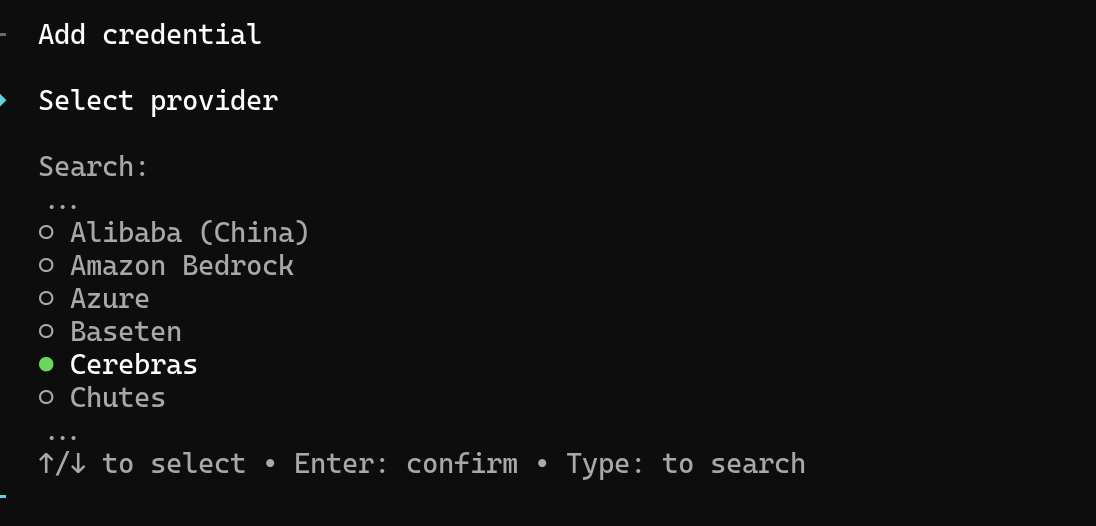 Enter your Cerebras API key:
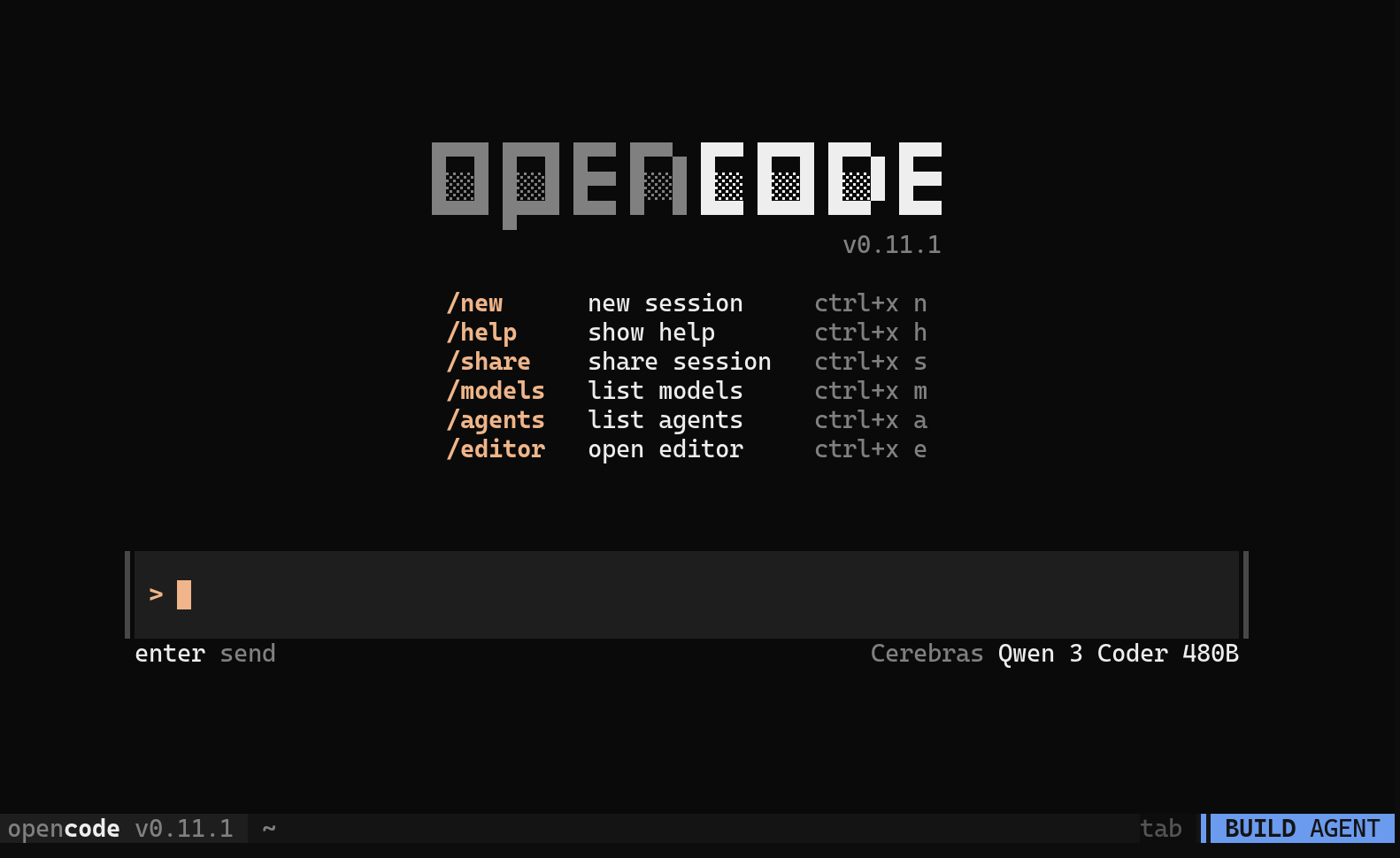
 Launch OpenCode in your project directory:
```bash theme={null}
opencode
```
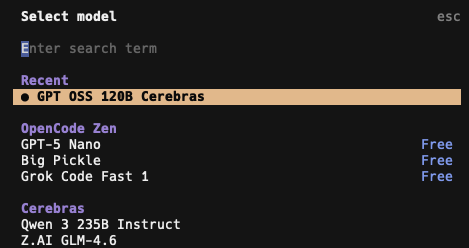
Once inside the OpenCode interface, type `/models` and press Enter to open the model selector. Choose a Cerebras model from the list.
If a newly released model does not appear, refresh OpenCode's model catalog, then reopen the model selector:
```bash theme={null}
opencode models cerebras --refresh
```
Launch OpenCode in your project directory:
```bash theme={null}
opencode
```
Once inside the OpenCode interface, type `/models` and press Enter to open the model selector. Choose a Cerebras model from the list.
If a newly released model does not appear, refresh OpenCode's model catalog, then reopen the model selector:
```bash theme={null}
opencode models cerebras --refresh
```
 Now you can start coding!
 ## Available Models
OpenCode supports all Cerebras models for AI coding assistance:
| Model | Parameters | Best For |
| ---------------- | ---------- | -------------------------------------------------- |
| **gpt-oss-120b** | 120B | Largest model for the most demanding tasks |
| **gemma-4-31b** | 31B | Multimodal coding tasks with text and image inputs |
You can switch between models at any time by typing `/models` inside the OpenCode interface.
If a Cerebras model doesn't appear in the `/models` picker, refresh the OpenCode model cache from your terminal:
```bash theme={null}
opencode models --refresh
```
You can also add a model explicitly through your OpenCode config. Create or edit `opencode.json` in your project or home directory:
```json theme={null}
{
"$schema": "https://opencode.ai/config.json",
"provider": {
"cerebras": {
"models": {
"gpt-oss-120b": {}
}
}
}
}
```
## Troubleshooting
If you see an error immediately after selecting a Cerebras model:
* **`401 Unauthorized`** — Your API key is missing or invalid. Re-run `opencode auth login`, select Cerebras, and paste a fresh key from the [Cloud Console](https://cloud.cerebras.ai/?utm_source=3pi_opencode\&utm_campaign=integrations).
* **`403 Forbidden` or "model not available"** — Cerebras models in OpenCode require a paid Cerebras plan. Upgrade in the [Cloud Console](https://cloud.cerebras.ai/?utm_source=3pi_opencode\&utm_campaign=integrations), then restart OpenCode.
* **`404 Not Found` or "model not found"** — The model ID isn't recognized by your OpenCode installation. Run `opencode models --refresh` to update the cached model list, then re-run `/models`.
* **`429 Too Many Requests`** — You've hit a [rate limit](/support/rate-limits). Wait and retry, or check your current usage in the Cloud Console.
* **Missing `opencode` command after install** — Reload your shell (`source ~/.zshrc` or `source ~/.bashrc`) so the new binary is on your `PATH`.
## Available Models
OpenCode supports all Cerebras models for AI coding assistance:
| Model | Parameters | Best For |
| ---------------- | ---------- | -------------------------------------------------- |
| **gpt-oss-120b** | 120B | Largest model for the most demanding tasks |
| **gemma-4-31b** | 31B | Multimodal coding tasks with text and image inputs |
You can switch between models at any time by typing `/models` inside the OpenCode interface.
If a Cerebras model doesn't appear in the `/models` picker, refresh the OpenCode model cache from your terminal:
```bash theme={null}
opencode models --refresh
```
You can also add a model explicitly through your OpenCode config. Create or edit `opencode.json` in your project or home directory:
```json theme={null}
{
"$schema": "https://opencode.ai/config.json",
"provider": {
"cerebras": {
"models": {
"gpt-oss-120b": {}
}
}
}
}
```
## Troubleshooting
If you see an error immediately after selecting a Cerebras model:
* **`401 Unauthorized`** — Your API key is missing or invalid. Re-run `opencode auth login`, select Cerebras, and paste a fresh key from the [Cloud Console](https://cloud.cerebras.ai/?utm_source=3pi_opencode\&utm_campaign=integrations).
* **`403 Forbidden` or "model not available"** — Cerebras models in OpenCode require a paid Cerebras plan. Upgrade in the [Cloud Console](https://cloud.cerebras.ai/?utm_source=3pi_opencode\&utm_campaign=integrations), then restart OpenCode.
* **`404 Not Found` or "model not found"** — The model ID isn't recognized by your OpenCode installation. Run `opencode models --refresh` to update the cached model list, then re-run `/models`.
* **`429 Too Many Requests`** — You've hit a [rate limit](/support/rate-limits). Wait and retry, or check your current usage in the Cloud Console.
* **Missing `opencode` command after install** — Reload your shell (`source ~/.zshrc` or `source ~/.bashrc`) so the new binary is on your `PATH`.